Introducción
Getting started
Set up your account and send yourself your first test charge in a few minutes.
Before you start
Tell us about your business
-
Enter your business name
Under “What is your business called?” type the name and click “Save”. Your customers will see it on payment links and messages.
-
Pick what you care about
Under “What matters most to you?” choose options such as Reply to messages, Get paid online or Organize customers. Recaudo orders the steps based on your choice.
-
Choose your industry
Under “What does your business do?” pick your industry and Recaudo builds a sales pipeline with stages for your business and a tip for each one. Open it with “View board”.
Test a charge on yourself
-
Request your test link
Click “Send me a test link”. It arrives on your WhatsApp from Recaudo's test number. If it doesn't arrive, the page shows a QR code and the link so you can open it on your phone.
-
Pay with the test card
Use card 4242 4242 4242 4242. It's a test payment: no real money is ever charged.
-
Watch the payment come in
The page detects the payment and tells you “You received your first payment!”. That's how your customers' payments reach you.
Connect what you need to get paid
-
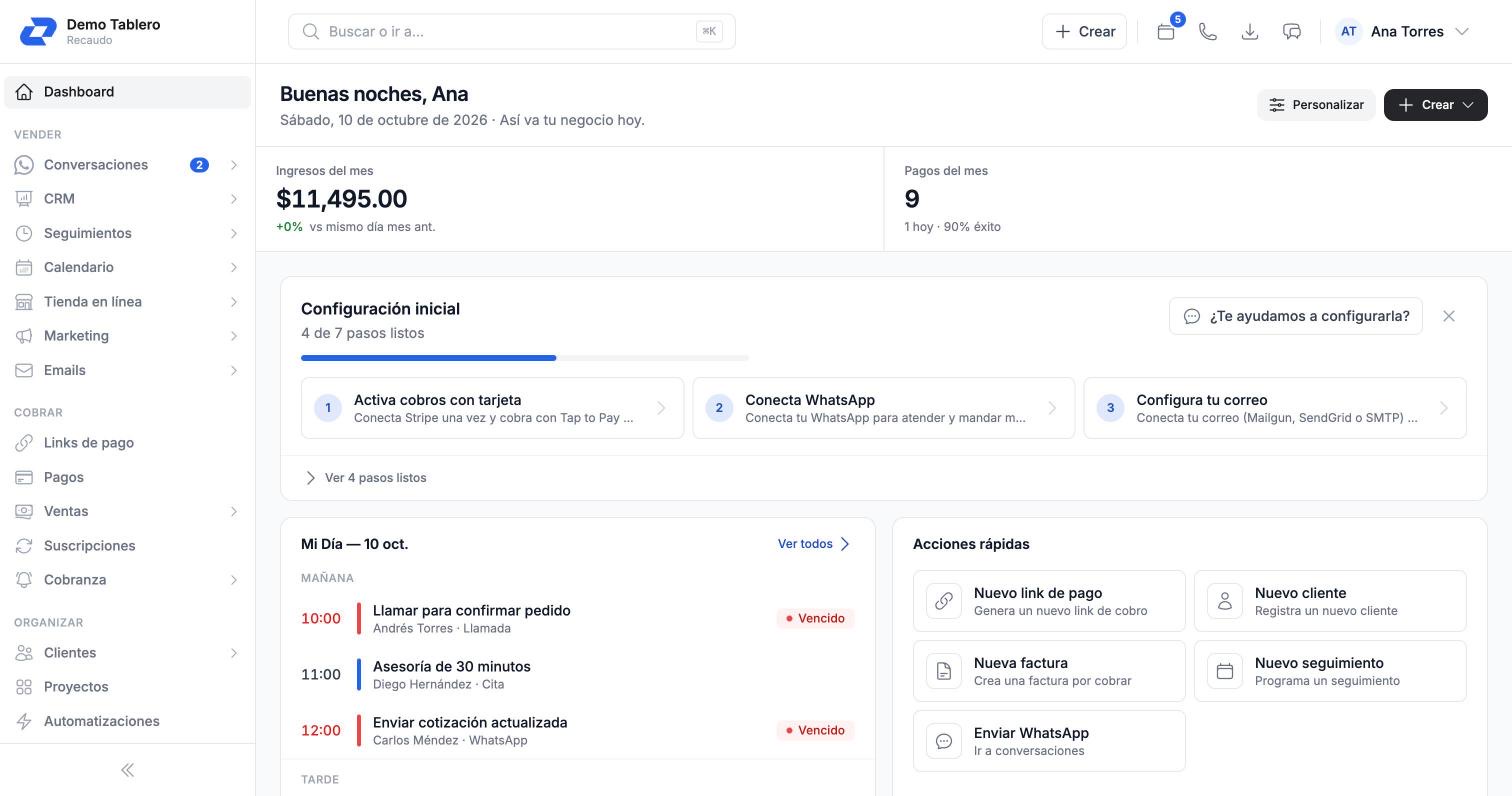
Connect your WhatsApp
Click “Connect WhatsApp” to use your own number to send charges and reply to customers. To connect it during the trial we ask for a card; we let you know before the first charge.
-
Turn on payments
In the payments step click “Turn on” and connect your payment gateway (for example, Stripe or Mercado Pago). Without a gateway you can't create payment links.
-
Invite your team
Click “Invite” to add the people who handle customers and payments, so they can see the conversations.
Tip