Pagos y facturación
Payments
Every payment that reaches your account, with its status, payment method and source.
Find a payment
-
Open Payments
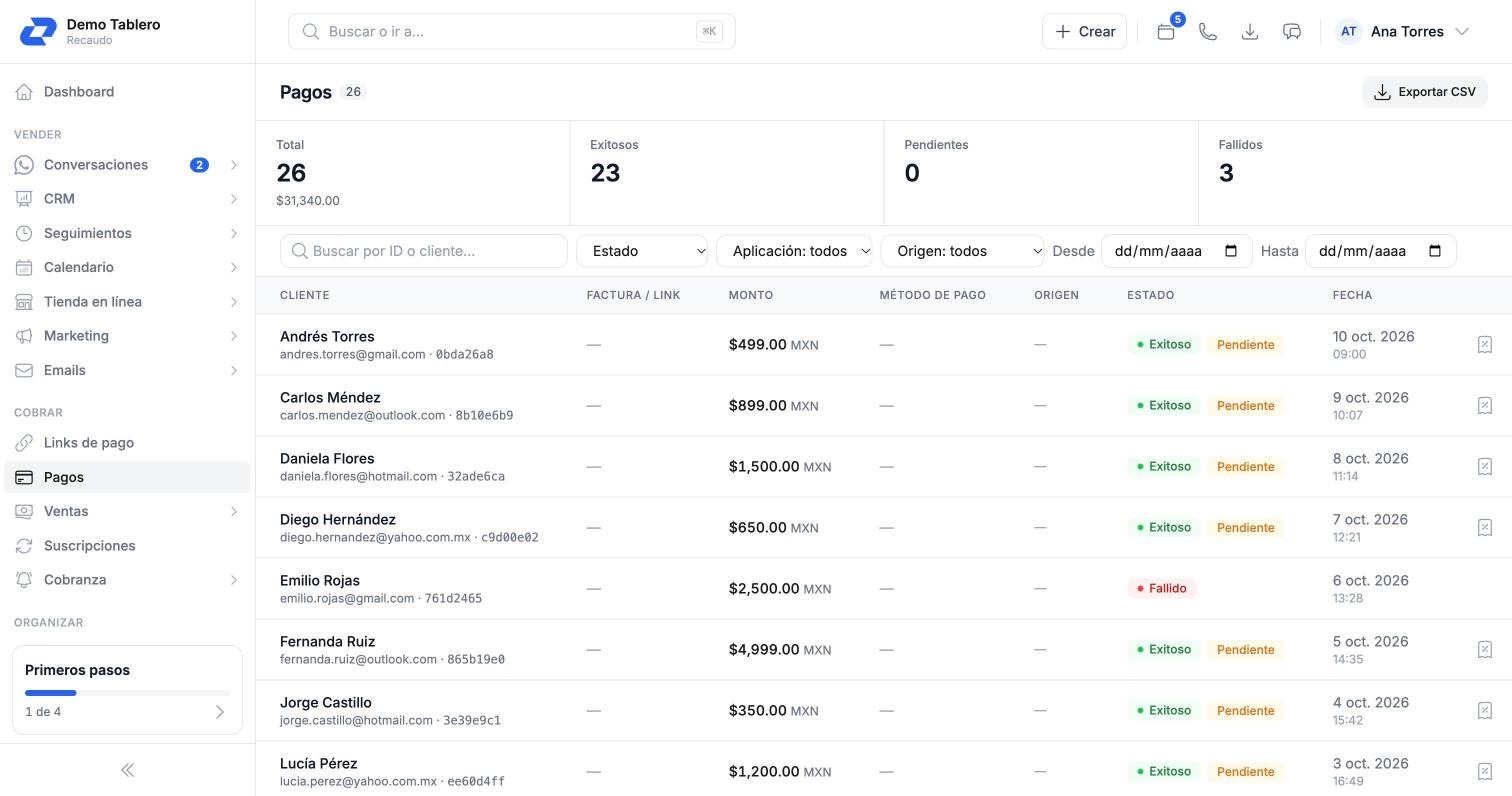
In the sidebar, under Collect, click “Payments”. At the top you see the total and how many payments succeeded, are pending or failed.
-
Search or filter
Search by ID or customer, and filter by status, application, source and a date range.
-
Open the details
Click a payment to see its details.
What you see in the details
- Amount, customer and the payment link or invoice that was paid.
- Gateway and payment method: card type, issuer and country.
- Charge attempts, with the gateway's response if something failed.
- Activity: everything that happened to the payment, in order.
- A button to open the receipt of a successful payment.
Mark a payment as applied
Applying a payment means marking that you've already recorded it in your accounting or your system. That way you know what's left to reconcile.
-
Find the unapplied payments
In the application filter choose not applied.
-
Mark it
Click the “Pending” label next to the status, or open the payment and mark it as applied. If you make a mistake, you can unmark it in the details.
Note
Refund a payment
-
Open the payment
Only successful payments can be refunded.
-
Click “Refund”
Enter the amount (full or partial, up to the payment amount) and, if you like, the reason.
-
Confirm
Confirm the refund. How long the money takes to come back depends on your customer's bank.
Important
Tip