CRM y clientes
Follow-ups
Schedule calls, messages and tasks with your customers so nobody is left without an answer.
Schedule a follow-up
-
Click “New follow-up”
It's in Follow-ups, in the dashboard's Quick actions and in the conversation panel.
-
Choose customer, date and type
Find the customer, set the date and time, and choose the type: Call, Message, WhatsApp, Email, Appointment or Task.
-
Assign it
Choose who will do it and write a description of what needs to be done.
-
Schedule a message (optional)
If the follow-up is linked to a conversation, turn on the automatic message and choose text, a quick reply, an HSM template or a resource. It's sent automatically at the scheduled time through the conversation's channel.
-
Save it
The follow-up shows up in the list and in My day for the person it's assigned to.
Work your follow-ups
-
Check the list
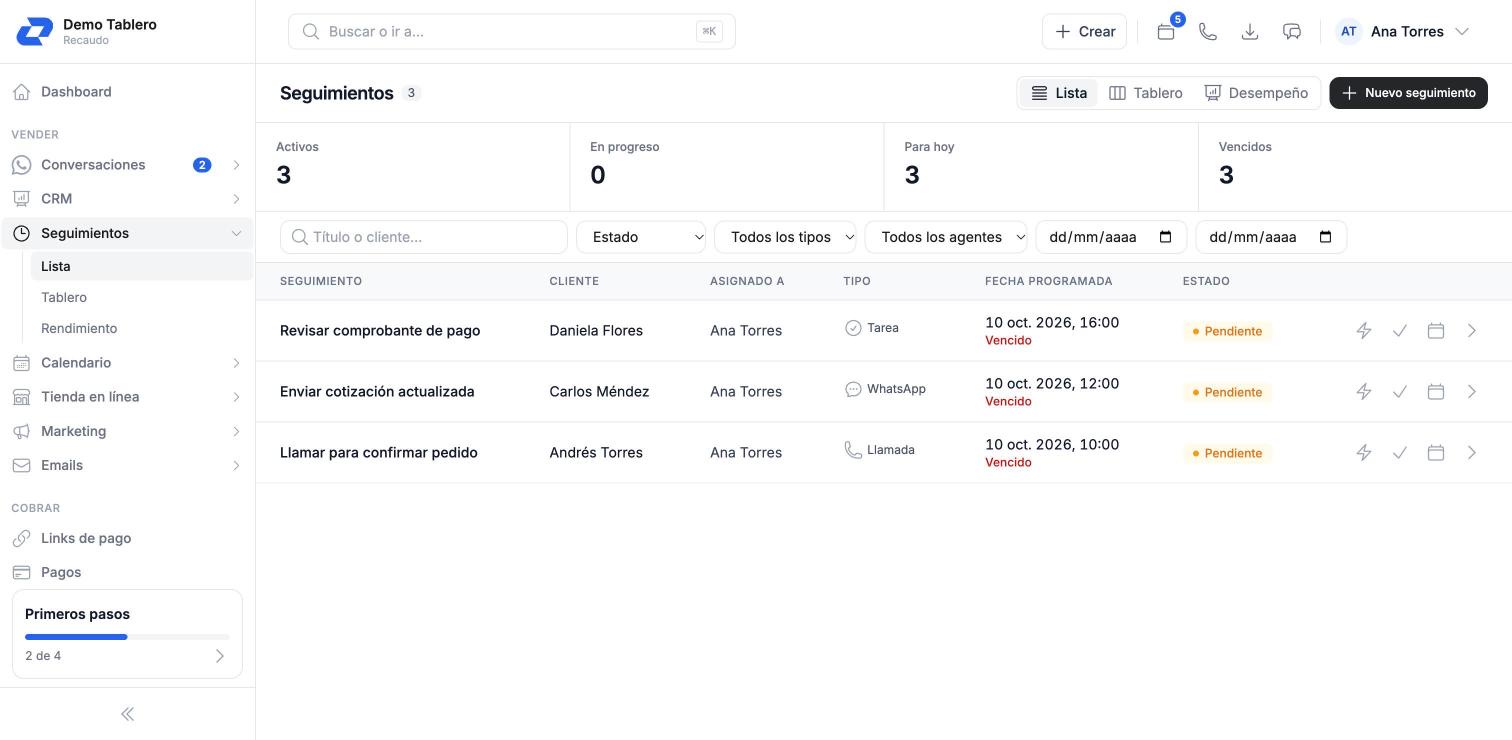
At the top you see active ones, those in progress, today's and overdue ones. Filter by status, type, agent and dates.
-
Start it
Use the Start action when you begin working on it. That records whether you started on time or late.
-
Complete or reschedule it
When you complete it you add closing notes and Recaudo asks if you want to schedule the next one. Reschedule lets you pick another date and the reason.
Board and performance
- Board: columns for Pending, In progress, Completed and Canceled.
- Performance: by period, total, completed, on time, late, overdue, completion rate and average time, per agent.
Tip